How to Type on Keyboard Like a Pro | Typing Tips for Beginners
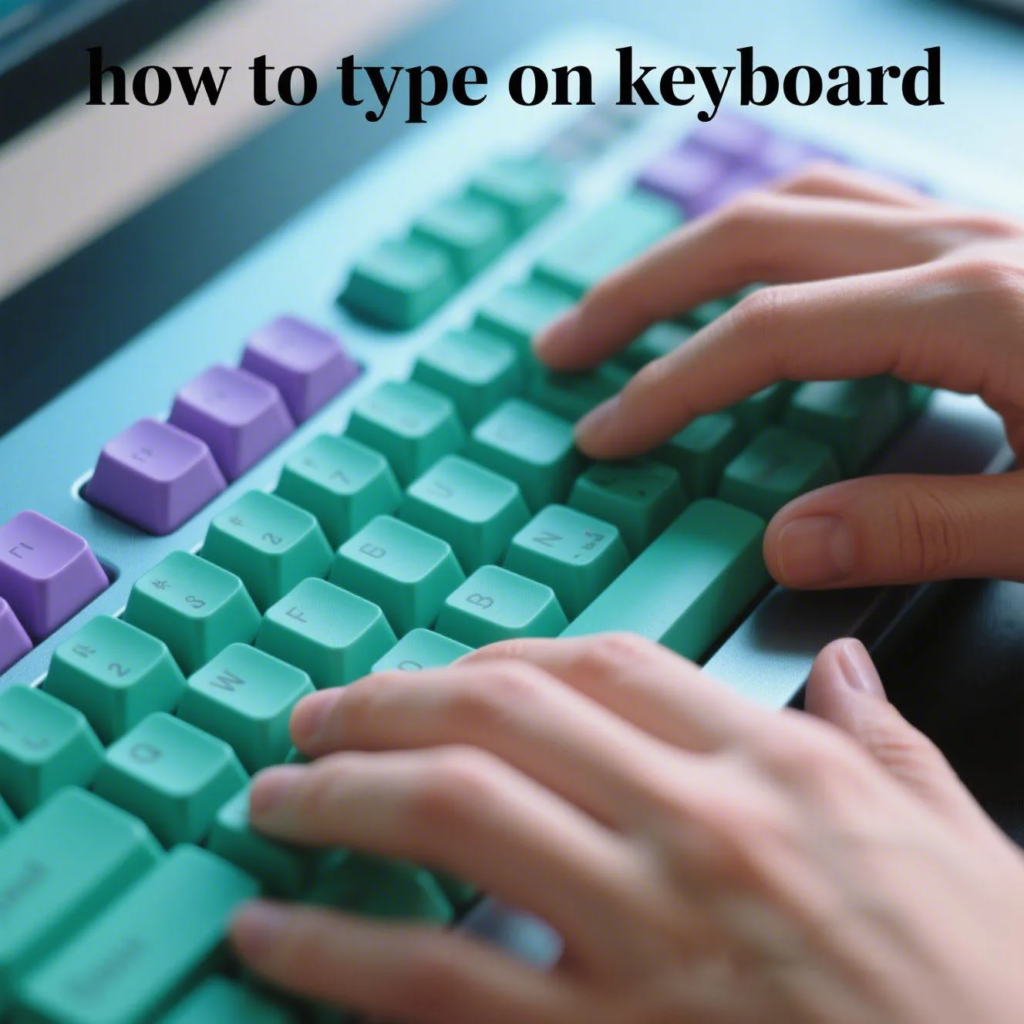
How to Type on Keyboard — A Beginner-Friendly Typing Guide
Focus Keyword: how to type on keyboard
Slug (Alias): how-to-type-on-keyboard
Meta Description: New to typing? Learn how to type on a keyboard with ease. Discover hand positioning, finger techniques, beginner exercises, and typing shortcuts to build speed and accuracy.
Why Learn Typing Properly?
Typing isn’t just for techies. Whether you’re writing emails, coding, gaming, or taking notes — typing efficiently helps you get things done faster, with fewer errors and less strain on your hands.
1. Get to Know Your Keyboard
A standard keyboard has around 104 keys, split into sections: letters, numbers, symbols, function keys (F1–F12), and navigation keys (like arrows and Home/End). Learn where your fingers naturally rest.
2. Home Row Positioning
The foundation of typing is the home row. Place your fingers like this:
- Left hand: A (pinky), S (ring), D (middle), F (index)
- Right hand: J (index), K (middle), L (ring), ; (pinky)
- Both thumbs rest lightly on the spacebar
The F and J keys usually have small bumps — feel them without looking to center your hands.
3. Basic Typing Rules
- Keep your wrists straight and relaxed
- Use the correct finger for each key — avoid “hunt and peck” typing
- Don’t look at the keyboard; train your muscle memory
- Stay relaxed and consistent
4. Practice Simple Exercises
Start slow, with basic drills like:
asdf jkl;— home row warm-upqwer tyui— top row trainingzxcv bn,m— bottom row training- Try repeating phrases like: “The quick brown fox jumps over the lazy dog.”
You can use tools like Keybr.com or TypingClub to practice online.
5. Improve Speed and Accuracy
- Track your WPM (words per minute)
- Focus on reducing backspaces and typing with fewer errors
- Once you’re confident, move on to typing real paragraphs or code
- Consider ergonomic keyboards or custom keycaps to reduce fatigue
6. Bonus: Useful Typing Shortcuts
- Ctrl + C / Command + C — Copy
- Ctrl + V / Command + V — Paste
- Ctrl + Z / Command + Z — Undo
- Ctrl + S / Command + S — Save
- Alt + Tab / Command + Tab — Switch between apps
Final Thoughts
Typing is a lifelong skill. Once you learn the basics, you’ll be amazed how much time you save every day. Practice just 10 minutes a day and watch your speed and confidence grow!
⌨️ Want to upgrade your typing experience? Check out our ergonomic mechanical keycaps — designed for comfort, accuracy, and style.
Related AllwinKey factory sourcing pages
If you are comparing costs, materials or factory options, use these pages to prepare a practical sourcing request:
Frequently Asked Questions
Place your left hand on A, S, D, F and right hand on J, K, L, semicolon, with thumbs resting on the spacebar for optimal reach and control.
With daily practice of 15-30 minutes, most beginners achieve basic touch typing proficiency within 4-6 weeks, reaching speeds of 30-40 words per minute.
Start with home row drills, then progress to common word patterns and short sentences. Use online typing tests and games to track progress and build muscle memory.
Buyer next step
Need custom keyboards or keycaps from a factory?
Send material, layout, quantity, packaging and timeline. AllwinKey will use it to prepare a practical RFQ discussion.
Member / sourcing checklist
Use the sourcing checklist before you register
Prepare MOQ, material, layout, packaging and sample questions before you contact the factory.
Open buyer sourcing checklist →Register as a buyer / member →
Buyer Q&A
Use this area for practical sourcing questions about MOQ, materials, layouts, samples, packaging, production schedule or OEM/ODM details.
No public sourcing questions yet. Be the first to ask a practical buyer question.